Nirmeva Focus

Nirmeva Focus

A macOS menu-bar timer built for deep work — with health reminders, session tracking, and a private analytics dashboard.

Scroll to explore

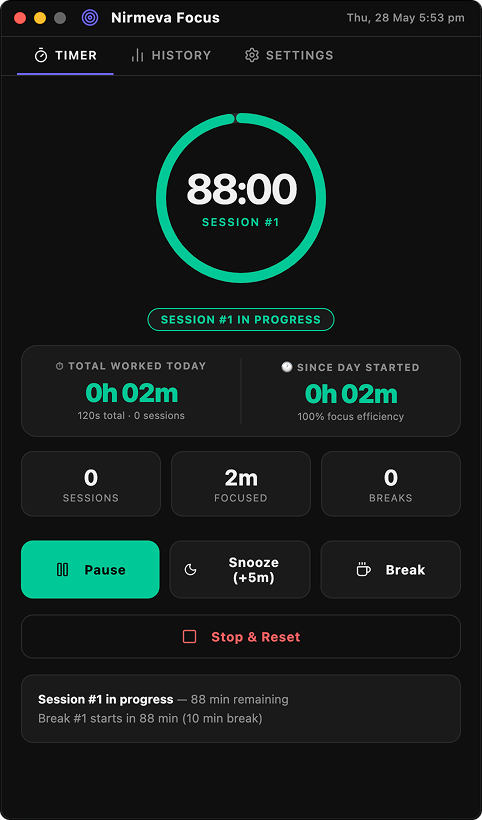
Nirmeva Focus — session in progressNirmeva Focus — idle, ready to start

The Timer

Lives quietly in your menu bar.
Shows up when it matters.

Nirmeva Focus sits as a tiny icon in your Mac menu bar — S1 45:21 — and opens a full dashboard on click. No Dock icon, no distractions. When you're focusing, it focuses with you.

  • Green ring counts down your work session
  • Sessions and breaks are numbered — always know where you are
  • Live focus efficiency score updates as you work
  • Today's total work time shown at a glance
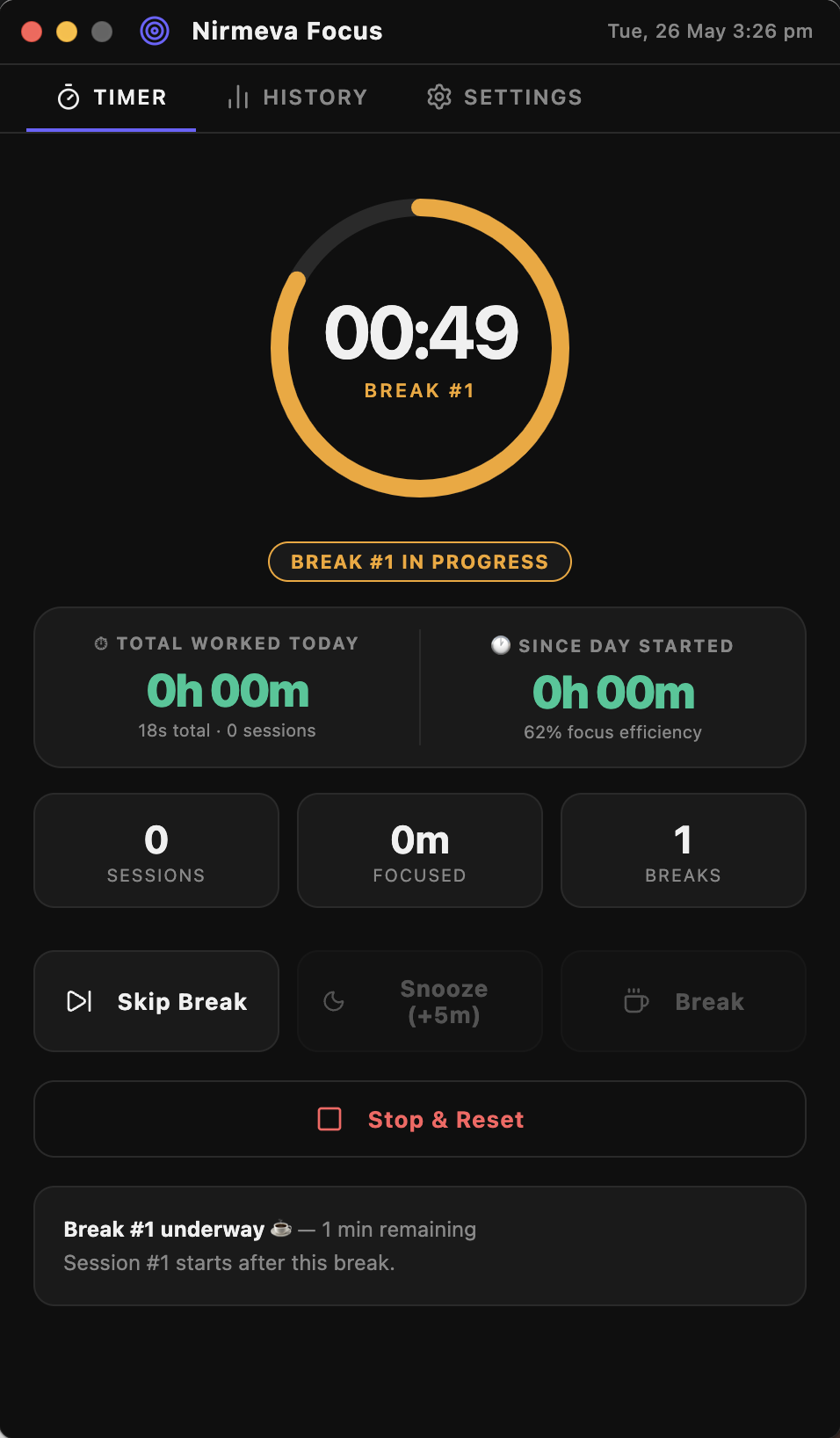
Nirmeva Focus — break timer

Breaks

Breaks that actually
feel like breaks.

When a session ends, a macOS notification fires and a 5-second countdown begins. Then your break starts automatically — no clicking needed. The orange ring tracks your break, and you're free to skip it early if you're in flow.

  • Auto-starts 5 seconds after session ends
  • Orange ring counts down break time
  • Skip Break if you want to keep going
  • Next session starts automatically when break ends

History

Your work, visualised

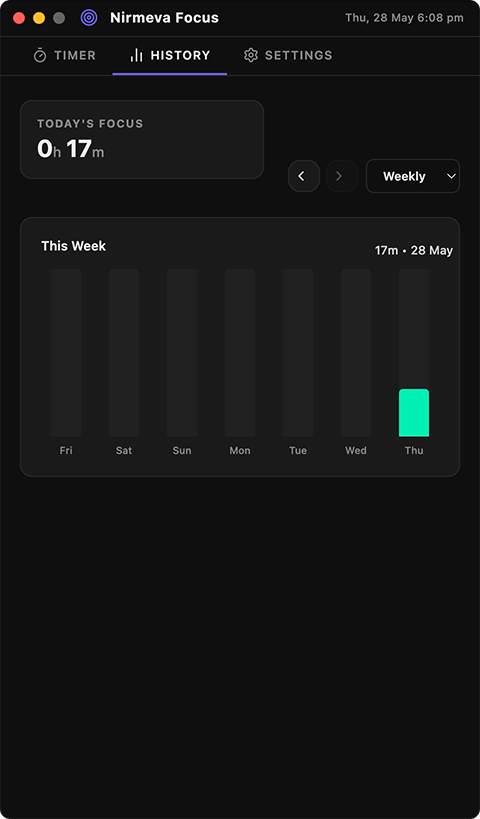
Weekly and monthly bar charts show when you're most productive. All data stays on your Mac — no account, no cloud, no tracking.

Nirmeva Focus history chart

Settings

Tuned to your rhythm

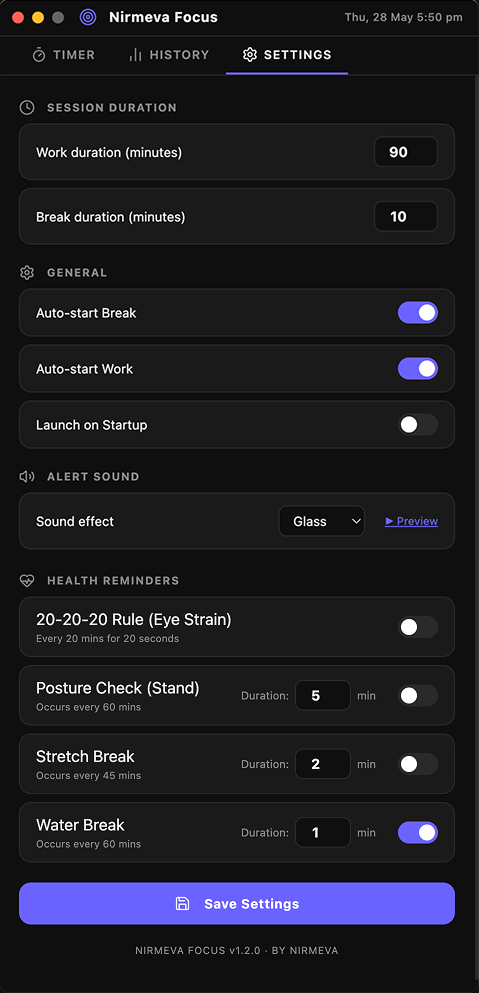
Custom work and break durations, auto-start toggles, alert sounds, and health reminders — all configurable in one place.

Nirmeva Focus settings panel
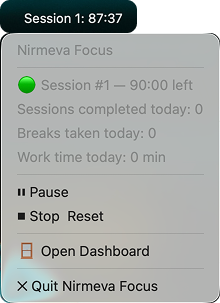
Nirmeva Focus menu bar dropdown

Menu Bar

Full control,
right-click away.

Right-click the menu bar icon at any time to see your live session status, sessions completed today, breaks taken, total work time — and pause, resume, or stop — all without opening the full dashboard.

How to use it

Everything you need to know to get the most out of Nirmeva Focus.

1

Click Start Focus to begin

Open the app from your menu bar and hit Start Focus. A 90-minute work session begins immediately — the green ring counts down, and your menu bar updates to S1 90:00. Sessions are numbered so you always know where you are in your day.

2

Control your session — you're always in charge

Three buttons give you full control while a session is running:

Pause

Freezes the timer. Hit Resume to continue from exactly where you left off.

Snooze (+5m)

Adds 5 more minutes to your session. Available once per session.

Break

Take an early break before the timer runs out. Session still counts.

3

Session ends → break starts automatically

When the timer hits zero, you get a macOS notification and a 5-second countdown. Then your 10-minute break starts on its own — orange ring, no clicking needed. When the break ends, the next session starts automatically. If you're deep in flow, hit Skip Break to continue straight away.

4

Change your work and break duration from Settings

The defaults are 90 min work · 10 min break — a research-backed rhythm for sustained deep work. To adjust for your day, open the app → go to the Settings tab → change either field → hit Save Settings.

Work durationDefault: 90 min· 5–240 min
Break durationDefault: 10 min· 1–60 min

Changes take effect from the next session — nothing interrupts a session already running.

5

Enable health reminders in Settings

Go to Settings → Health Reminders and toggle on what suits you. Each fires automatically during work sessions as a brief micro-break overlay — the session clock pauses and resumes on its own.

20-20-20 Rule — fires every 20 minutes

Every 20 minutes, look at something 20 feet (6 metres) away for 20 seconds. This exercises the ciliary muscles in your eye and reduces the tension that builds up from staring at a screen. The app pauses for 20 seconds and prompts you to do it.

Posture Check — fires every 30 minutes

A 15-second pause to sit up straight, roll your shoulders back, and unclench your jaw. Catches the slow slouch before it becomes a sore neck.

Stand Up & Stretch — fires every 60 minutes

A 60-second break to stand up, stretch your back, and let blood circulate. Prolonged sitting tightens your hip flexors and lower back — this keeps you moving without derailing your focus.

Installation Methods

Method A: Homebrew Cask (Recommended)

Install in one command via Terminal

Run this single command in your Terminal to automatically download, extract, install, and bypass macOS quarantine restrictions:

brew install --cask nirmeva-studio/tap/nirmeva-focus
Method B: Manual DMG & Terminal Gatekeeper Fix

Download, drag, and fix Gatekeeper in two steps

If you downloaded the .dmg manually and macOS says the app is "damaged" or cannot be opened, follow this quick two-step fix:

  1. 1

    Drag Nirmeva Focus from the DMG into your Applications folder.

  2. 2

    Open Terminal (/Applications/Utilities/Terminal.app) and run this exact command to strip the macOS download quarantine flag:

    xattr -cr /Applications/Nirmeva\ Focus.app
Feedback Channel
FEEDBACK_IDLE

Nirmeva Focus

Share your thoughts.

What's working, what's not, what you'd love to see.

Goes straight to my inbox. I read every message.

Ready to start focusing?

Free download. No account. No cloud. Your data stays on your Mac.

Before downloading, please read the How to Use and Installation guides above — it only takes a minute.

macOS 10.12+ · Apple Silicon · Free

A Nirmeva Studio Product